TradingView combines financial charts, watchlists, screeners, alerts and trading tools in one workspace. Its practical value is the connection between those tasks: find an instrument, inspect the chart, define a condition worth watching and decide what to do when that condition occurs.
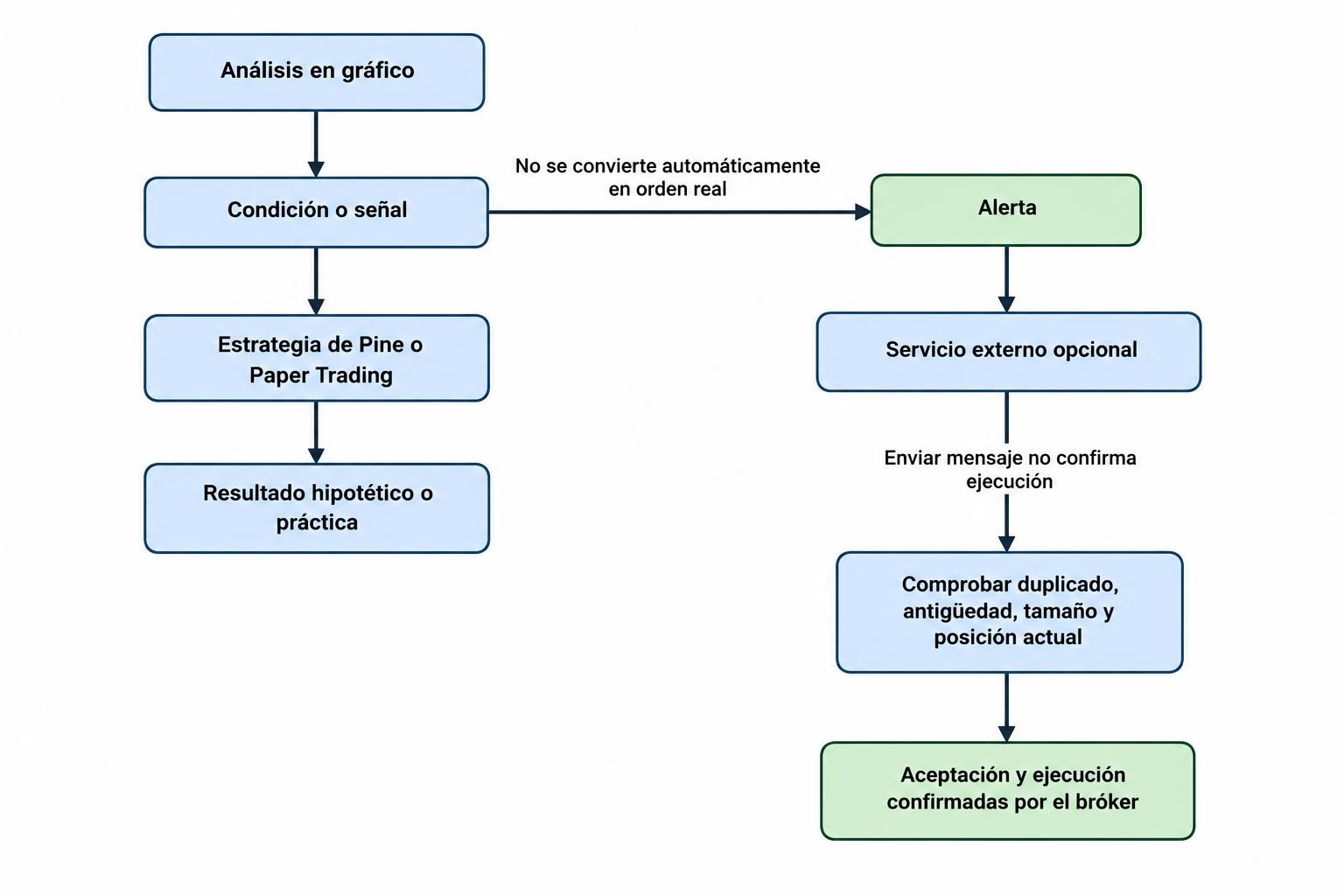
The distinction to keep clear is analysis versus execution. A chart signal is not an order, a simulated fill is not a live fill, and a subscription does not automatically include every exchange data feed. TradingView works best when you treat those as separate parts of your trading process rather than one seamless promise.
This guide covers how to use its main tools, where the restrictions matter and what to check before paying for more capacity or connecting an account.
What TradingView Does—and Where It Fits
TradingView provides charting through its web platform, desktop application and mobile apps. Its feature range includes technical indicators, drawing tools, screeners, economic and earnings calendars, simulated trading and connections to selected brokers. Access and capacity vary by subscription; the official TradingView feature comparison lists the current chart, indicator, historical data and alert allowances.
Think of it primarily as an analysis workspace with optional execution connections. You can build a research routine without connecting a funded account. Equally, the presence of a symbol on a chart does not mean your chosen broker lets you trade that instrument through the platform.
When comparing TradingView with other platforms, start with your task rather than the longest feature list. A trader reviewing daily charts has different requirements from someone managing intraday orders. More indicators do not fix a missing order type or an unsuitable data feed.
Charting: Build a Workspace That Answers Questions
A useful chart setup should answer three questions: what market are you viewing, what conditions matter and what would invalidate your trade idea? Everything else should earn its space.
Choose the Instrument and Data Source Carefully
Check the exchange or provider beside the symbol, not just the ticker. Similar names can refer to different listings, currencies, contracts or trading venues. For futures, distinguish a dated contract from a continuous series used for historical analysis. For crypto, check the exchange and quote currency.
Also check the chart’s session, timezone and adjustment settings. A setup defined around the regular stock market session should not accidentally use extended hours. A historical stock comparison should use a consistent treatment of corporate actions.
These checks are particularly relevant when you compare TradingView with a broker’s platform. Two charts can differ without either being broken: they may use different feeds or session settings. Establish that before spending an afternoon troubleshooting a moving average.
Use Timeframes With Separate Jobs
A practical routine might use a daily chart for market structure and an hourly chart for entry preparation. The higher timeframe establishes context; the lower timeframe helps assess the setup. Changing between them should answer a planned question, not continue until one chart agrees with your preferred trade.
Keep drawings purposeful. Mark the price levels that change your decision, then remove stale annotations. A chart covered in overlapping lines can look rigorous while making the next action harder to identify.
Before building an elaborate layout, write down your entry, exit and position sizing rules. The workspace should display the evidence those rules require, rather than substitute for the rules themselves.
Indicators and Community Scripts
TradingView offers built-in indicators and user-published scripts. Use them to measure a defined condition: trend direction, volatility, momentum or participation. Adding several tools that calculate similar information can create the appearance of confirmation without adding much new evidence.
For example, a trend filter and a volatility measure serve different purposes. Three closely related momentum indicators may simply repeat the same message. Decide what each indicator contributes before adding another pane.
Apply more scrutiny to community scripts than their presentation might suggest. A polished description, attractive historical signals or enthusiastic comments do not establish that a tool behaves reliably during live trading.
Check whether the script’s logic is available, what its inputs mean and whether signals can change after appearing. If the logic is hidden, you have less ability to inspect its assumptions. That does not automatically make the script unsuitable, but it should reduce how much trust you place in unexplained results.
TradingView Alerts: Define the Condition Before the Notification
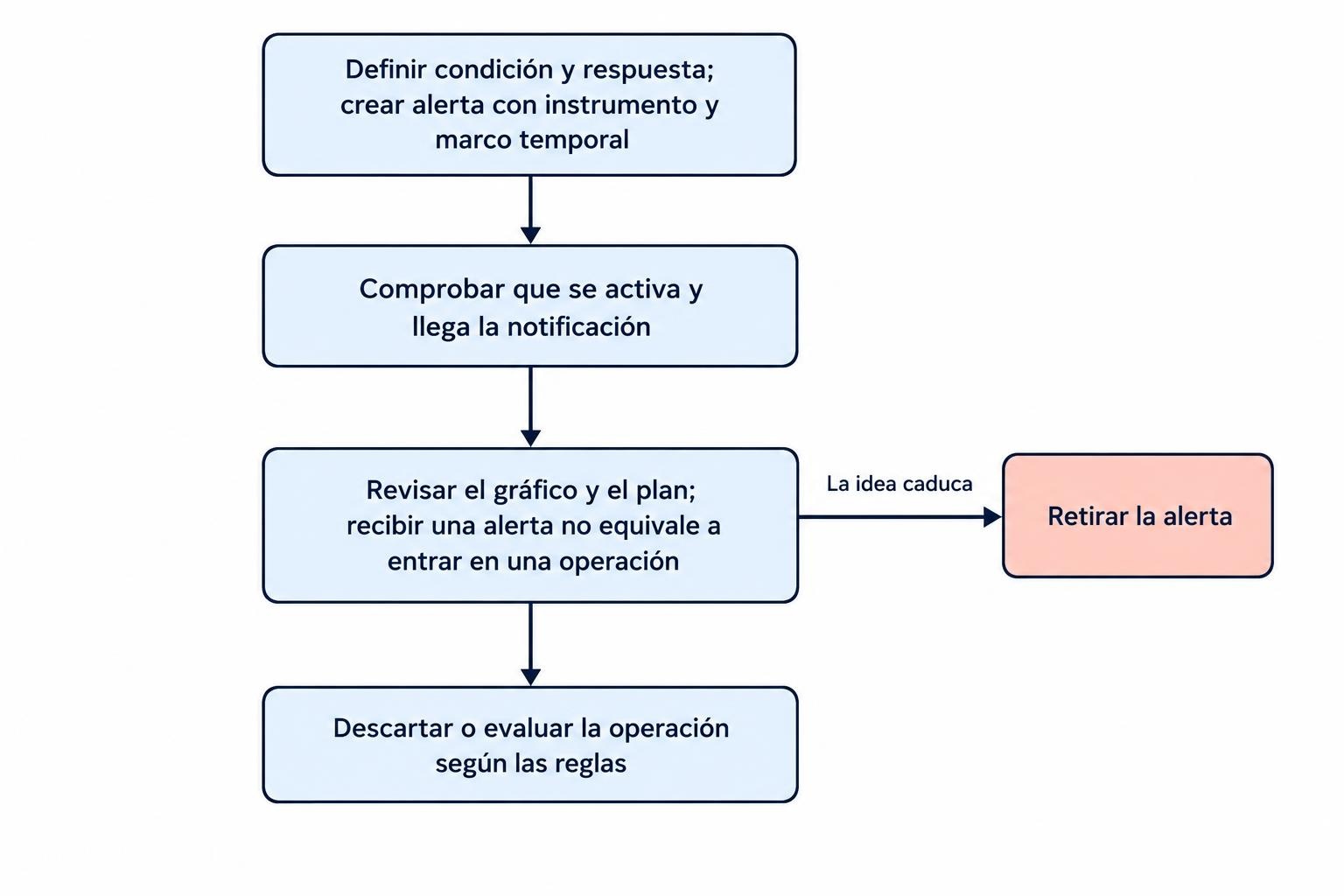
Alerts are useful when they replace repetitive chart checking with a clear instruction to review a market. They become less useful when every minor price movement demands attention.
A price level alert might prompt you to inspect a potential breakout. An indicator alert might flag a change in momentum. Neither needs to mean “enter immediately.” Often the better instruction is “check whether the setup still meets the trading plan.”
Intrabar Signals Versus Bar Close Confirmation
A condition can appear while a candle is forming and disappear before it closes. If your rule requires a completed candle, configure the alert accordingly. Bar close confirmation addresses that particular timing issue, but it does not cure every form of repainting or faulty script logic.
Script alerts also preserve a snapshot of the script, inputs and chart context when created. Editing the chart or changing an indicator later does not update that existing snapshot; recreate the alert after relevant changes. The TradingView alert documentation covers these behaviors, along with alert logs, notification settings and common failure causes.
Name alerts so they remain intelligible away from the chart. “Daily close above resistance: review entry” is more useful than “Alert 12.” Include the instrument, timeframe and required response where practical.
Check the Whole Notification Path
Distinguish an alert firing from a notification reaching you. Review the alert log, device permissions and chosen delivery settings during setup. Test with a harmless condition before relying on the process during a trading session.
Retire alerts when the underlying trade idea expires. A trigger created for last month’s setup can still demand attention long after the reasoning has stopped making sense. For broader delivery choices, see the guide to email, push notifications and webhook trading alerts.
Screeners, Watchlists and Market Context
Use a screener to reduce the research queue, then use a watchlist to manage the instruments worth following. Those are different jobs. A screening result is a candidate for inspection, not a completed trade assessment.
For a hypothetical stock workflow, start with the market and instrument type you can actually trade. Apply liquidity and price filters that suit your approach, then inspect the remaining charts. Review nearby earnings events before treating a technical setup as routine.
Organize watchlists around decisions. Separate instruments under research from those approaching a valid setup, and keep open positions easy to find. Avoid turning the list into a permanent collection of everything that once looked interesting.
News and calendar information provide context, but a headline alone rarely supplies enough detail for a sound trading decision. Check the original announcement when the wording could change your interpretation. A company raising revenue guidance while lowering margin expectations is not a simple “good news” label.
Pine Script and Strategy Testing
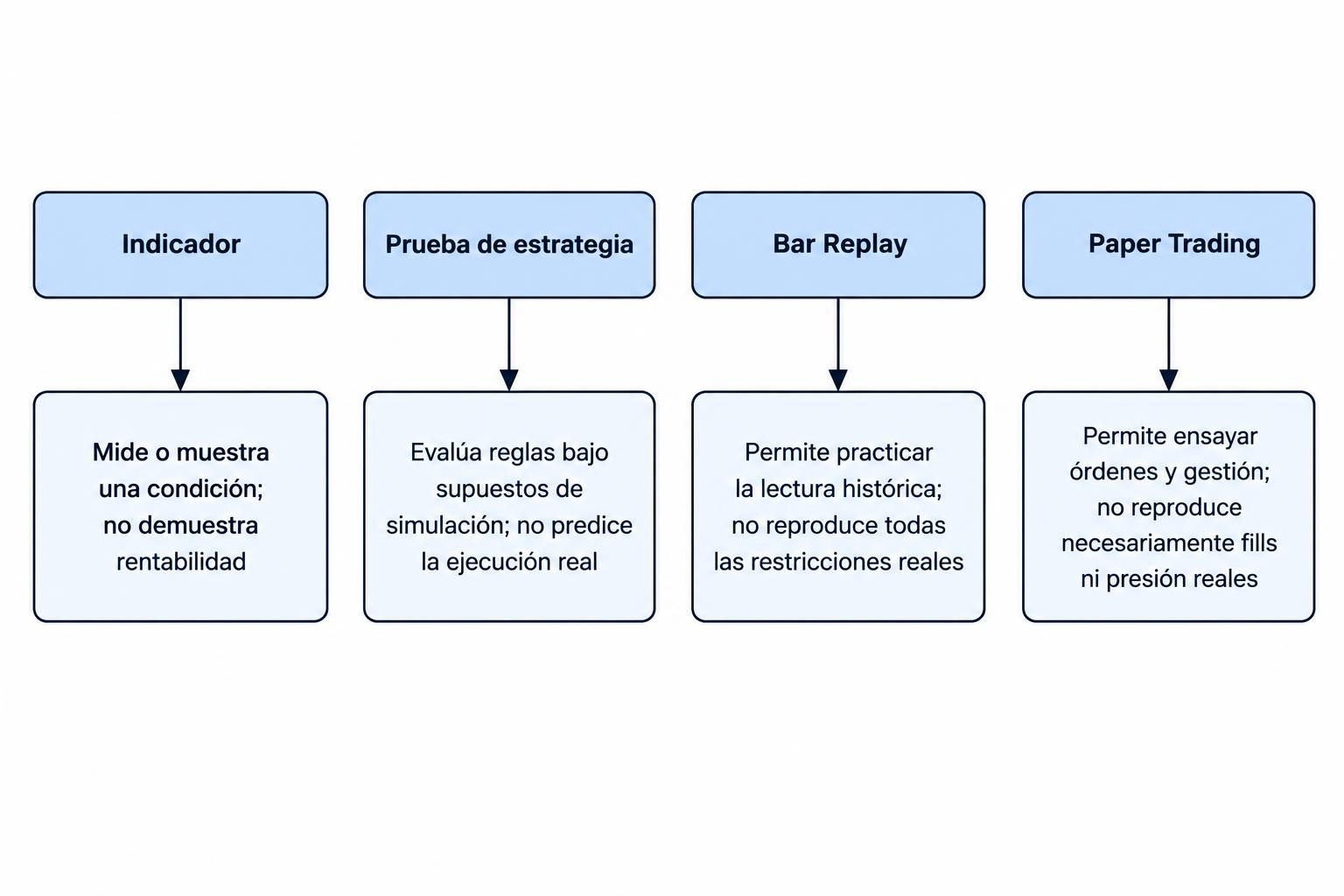
Pine Script is TradingView’s scripting language for creating indicators and strategies. The distinction matters: an indicator calculates or displays information, while a strategy can define simulated trading orders and produce hypothetical performance results.
Use strategy testing to examine whether your rules behave as intended. Inspect individual trades as well as the performance summary. An attractive equity curve can conceal incorrect exits, unrealistic costs or assumptions that would be difficult to reproduce.
Model transaction costs and execution assumptions carefully. If the approach trades frequently, small differences in commission and slippage can change the result materially. Avoid treating a fill at an exact historical price as proof that a live order would have received that price.
| Tool | Useful purpose | What it does not establish |
|---|---|---|
| Indicator | Display or measure a market condition | That the condition produces profitable trades |
| Strategy test | Evaluate explicit rules under simulation assumptions | That live execution will match historical results |
| Bar Replay | Practice reviewing a chart without seeing the next move | That every live trading constraint has been reproduced |
| Paper Trading | Rehearse order entry and position management | That real fills or trading pressure will be identical |
Keep some data outside the strategy development process, and resist repeatedly adjusting settings until one historical period looks excellent. The guide to backtesting an automated trading strategy covers the testing process beyond TradingView’s interface.
Paper Trading and Broker Connections Are Separate
TradingView’s Paper Trading feature uses simulated money. It provides a place to rehearse placing orders, checking quantities and managing positions without putting funded capital at risk.
Make the practice account resemble your intended trading conditions where possible. Use a realistic starting balance and position sizes. An oversized virtual account makes it easy to ignore the very constraints you need to practice.
Record mistakes in the process, not just simulated profit and loss. Did you choose the wrong symbol, reverse the order direction or leave an unwanted order working? Those are useful discoveries before an account is funded.
Connecting a broker introduces another set of checks: account eligibility, supported instruments, available order types and how orders appear across both interfaces. Use the separate guide to connecting TradingView to a supported broker for that setup rather than assuming every connection behaves alike.
A Strategy Alert Is Not a Live Order
Pine strategy orders belong to a simulation. They do not automatically become orders in a connected brokerage account. An alert sent to an external execution service adds another system between the trading condition and the broker.
If you build that arrangement, require checks for duplicate messages, stale signals, maximum order size and current positions. Confirm order acceptance and execution independently. A message leaving one system is not evidence that another system filled the trade.
Keep a way to stop automation and manage positions through the broker’s own interface. Automation should reduce repetitive work, not remove your ability to intervene.
Market Data and Subscription Costs
Separate the cost of platform features from the cost of exchange data. TradingView’s paid plans do not automatically cover exchange real-time data fees. Before subscribing, identify the markets and feeds your routine actually requires.
For U.S. stocks, check whether you are viewing the default Cboe feed or data from the listing exchange. Also distinguish chart data from the quotes available through a broker connection. Do not assume that paying for one data service changes every price display in the workspace.
The practical test is straightforward: inspect the exact symbol, its data status and the feed used for order decisions. The distinction between real-time and delayed market data matters more for short holding periods than for a weekend chart review.
Choose a subscription by the constraint you can name. If your routine needs more simultaneous charts, additional technical alerts or more historical bars, compare those allowances. If the free account already supports your process, paying more does not make the analysis better.
Calculate the total recurring cost, including data and any external execution service. Check billing frequency, renewal terms and cancellation conditions before accepting a promotional price.
A Practical TradingView Setup Routine
Start with one market, a manageable watchlist and a simple chart template. Confirm the symbol source, session and timezone. Add only the indicators your rules need, then create one alert with a clearly defined response.
Run through the process in simulation: receive the notification, inspect the setup, calculate the intended position and place the practice order. Check what happens when you modify or cancel it. Record any step that creates uncertainty.
Expand only after that routine works consistently. TradingView can bring research, monitoring and execution preparation into one workspace, but the quality of the workflow still depends on clear rules, suitable data and checks between each stage. The best setup is not the busiest chart. It is the one that makes your next decision easier to verify.