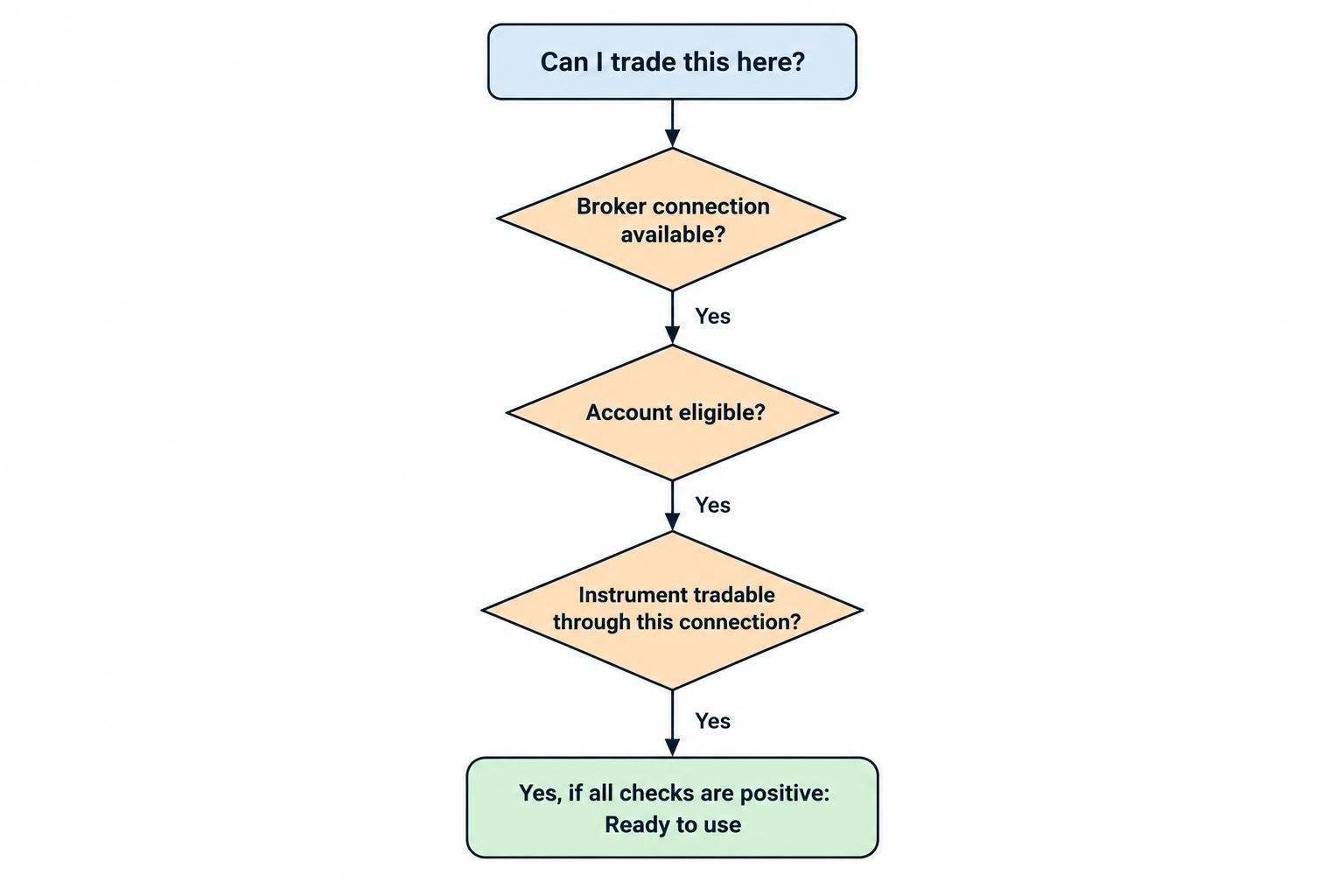
To connect TradingView to a supported broker, open Supercharts, select Trade, choose your broker and complete its login process. Before placing an order, confirm that the correct account is connected, the symbol is tradable through that connection and the order ticket has the market data you need.
The login itself is usually the short part. Most setup problems involve account eligibility, instrument selection, data permissions or differences between the broker’s own platform and its TradingView integration. A successful connection does not mean every feature or product in your brokerage account is available through TradingView.
This guide covers the connection process and the checks worth completing before live trading. For the platform’s wider charting and analysis features, see our guide to TradingView’s charting, alerts and trading tools.
Check Broker and Account Compatibility Before Connecting
Start with the broker list inside TradingView, rather than an old comparison article or a screenshot. Confirm that your broker appears, then check whether the integration supports your account and intended market.
Treat compatibility as three separate questions: does TradingView connect to the broker, does your particular account qualify, and can that connection trade the instrument you want? A “yes” to the first question does not settle the other two.
Before funding a new account specifically for TradingView access, ask the broker to confirm eligibility for your country of residence, the legal entity holding your account and your account type. Also ask whether you need to activate trading permissions or accept an additional agreement.
Check the functions your trading process actually needs. If you use attached stop and target orders, extended trading hours or a particular order duration, verify those features through the integration. Do not assume that every control in the broker’s native application also appears in TradingView.
How to Connect a Broker to TradingView
The current Supercharts connection route starts with the Trade button in the upper right. Select the broker and sign in using the broker’s credentials, following the official TradingView broker connection instructions.
- Sign in to TradingView. Use your TradingView account to open your chart workspace.
- Open Supercharts and select Trade. Find your broker in the available list.
- Select the broker and start the connection. Follow the login or authorization flow presented for that integration.
- Choose the intended environment where offered. Check whether you are connecting a live account or a broker’s demo account.
- Complete authentication. Enter the requested broker credentials and complete any security or authorization steps.
- Verify the account before trading. Check the account identifier, currency, available funds and existing positions against the broker’s own platform.
Your TradingView login and brokerage login serve different purposes. Signing in to the charting platform does not establish that you have access to a live trading account. Keep the two separate, especially when a password manager offers several saved logins.
During authorization, check the destination address before entering credentials. Stop if an unexpected page asks you to send passwords, authentication codes or account details to a support representative. Troubleshooting should not require handing someone the keys to the account.
Confirm the Correct Account Is Active
Do not use a familiar-looking balance as your only check. Compare the account identifier and environment label, particularly if you maintain both demo and live accounts.
If an account selector is available, confirm the intended account immediately before submitting an order. Repeat that check after reconnecting or switching brokers. A correct order sent to the wrong account is still a mistake.
Use the broker’s native platform as a second view during setup. Reconcile an existing position or account balance before relying on the connected workspace. If the two views disagree, resolve the difference before adding another trade.
Select a Symbol the Connected Broker Can Trade
A chart appearing in search results does not prove that your connected account can trade it. Start with symbol search, apply the connected broker’s filter where available, and select the matching instrument.
Compare more than the instrument name. Check the exchange or provider, currency and product type. For futures, check the contract month as well. A chart used for analysis and an orderable contract should not be treated as interchangeable without verification.
If the order ticket reports a “non-tradable symbol,” work through the symbol selection first. Confirm that you selected the broker-supported version, then check account permissions and data access. Reconnecting repeatedly will not fix an unsupported instrument.
A practical setup habit is to maintain a watchlist of instruments already checked against the connected account. Before adding a new symbol, open its order ticket and inspect the quantity units and available order controls without submitting anything.
Check Chart Data and Order Ticket Quotes Separately
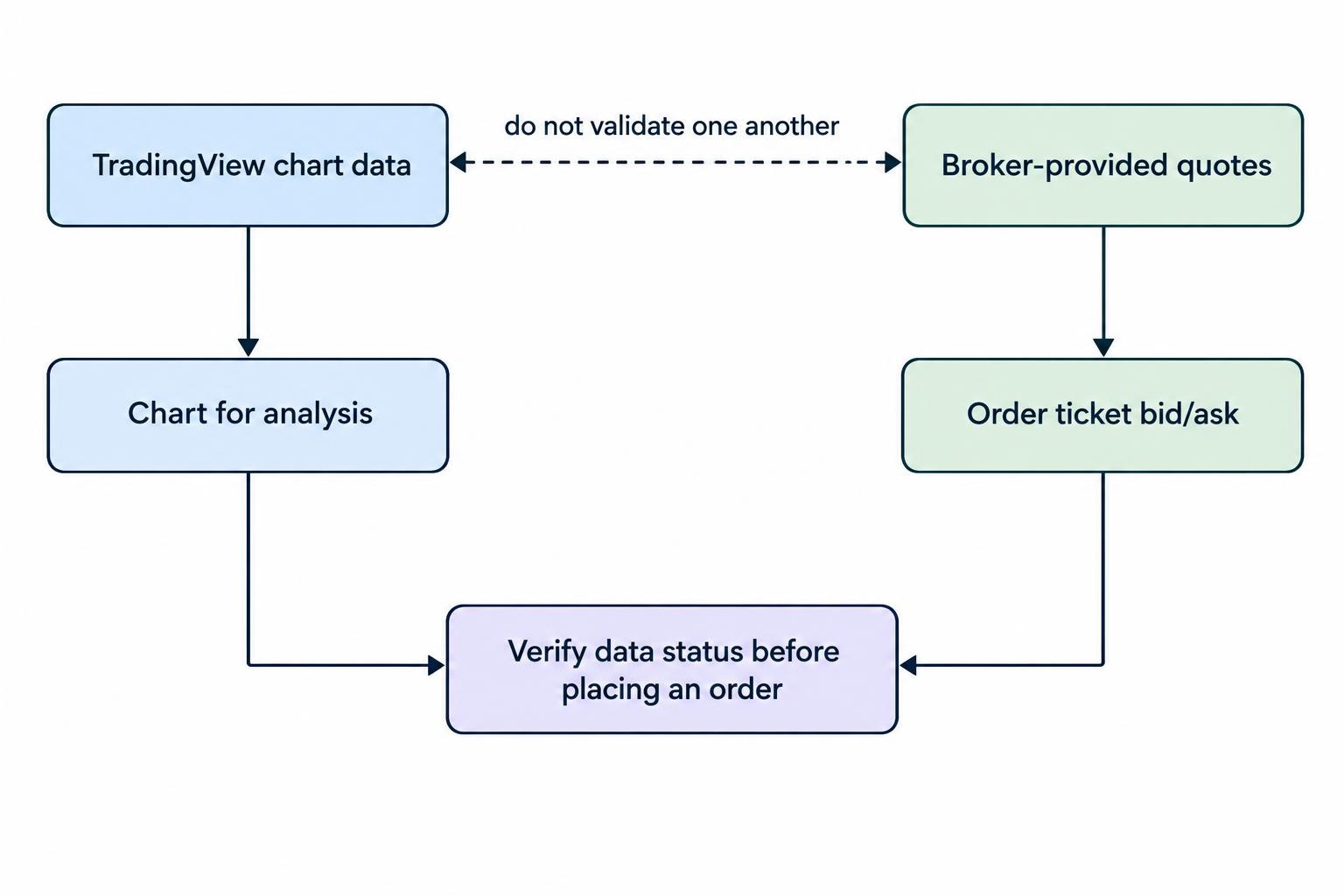
TradingView chart data and connected broker quotes need separate attention. The live broker order panel uses data supplied by the broker; purchasing a TradingView data package does not automatically upgrade that feed. Broker quotes may remain delayed if the required broker subscription is missing, as covered in TradingView’s guidance on chart data versus broker quotes.
Compare the chart’s market status with the bid and ask shown in the order ticket. If one view indicates delayed data, do not assume the other view corrects it. Confirm the entitlement needed for both analysis and order entry.
Consider a hypothetical setup where a stock chart updates in real time, but the broker ticket shows delayed quotes. A trader could calculate an entry from the chart while reviewing an outdated bid or ask in the ticket. Resolve the mismatch before sending an order, rather than treating the displayed quote as a reliable execution estimate.
Even with current data, a chart price is not a guaranteed fill price. A market order prioritizes execution, while a limit order sets a price boundary but may remain unfilled. The distinction between real-time and delayed market data matters most when you use those prices to make immediate decisions.
Separate Platform, Data and Brokerage Costs
Build a cost check around the workflow you intend to use. Review the TradingView plan features you need, any exchange data subscriptions, and the broker’s commissions and other account charges separately. Do not treat a charting subscription as an all-inclusive trading bill.
Before purchasing another data package, ask whether an existing broker entitlement can be verified for use on TradingView. Confirm the supported exchange and any renewal or reconnection requirement rather than assuming all broker subscriptions transfer.
Also check whether your broker charges for the connection or applies different terms to orders entered through another interface. Read the current fee schedule for your account, not just the headline commission.
A useful comparison is the cost of your normal trading month: expected transactions, required data, platform features and any recurring account charges. This is more informative than comparing subscription prices in isolation.
Test the Order Workflow Before Trading Live
Use a practice environment first where possible. Distinguish TradingView’s built-in Paper Trading simulator from a demo account supplied by your broker. Treat each as a separate test environment, not proof that the other behaves identically.
The aim is operational: can you select the intended instrument, enter the correct quantity, submit an order, inspect its status, modify it where allowed and confirm cancellation? A profitable practice trade answers none of those questions by itself.
For a fuller comparison of testing conditions, see our guide to paper trading versus live trading. Keep the initial connection test focused on order handling rather than strategy performance.
Review the Ticket Before Submission
Read the order ticket from top to bottom. Confirm the account, symbol, buy or sell direction, quantity, order type, price and duration. Where protective orders are available, check their prices and quantities too.
Pay particular attention to quantity units. Shares, contracts and lots are not interchangeable. Verify the position’s value and potential loss using the product’s contract details rather than assuming a quantity of “1” means a small exposure.
For an illustrative share trade, buying 100 shares at $50 with a planned exit at $49 creates $100 of price risk before fees, slippage or a price gap. That arithmetic does not establish that 100 units in another product carries the same risk.
Verify Status After Submission
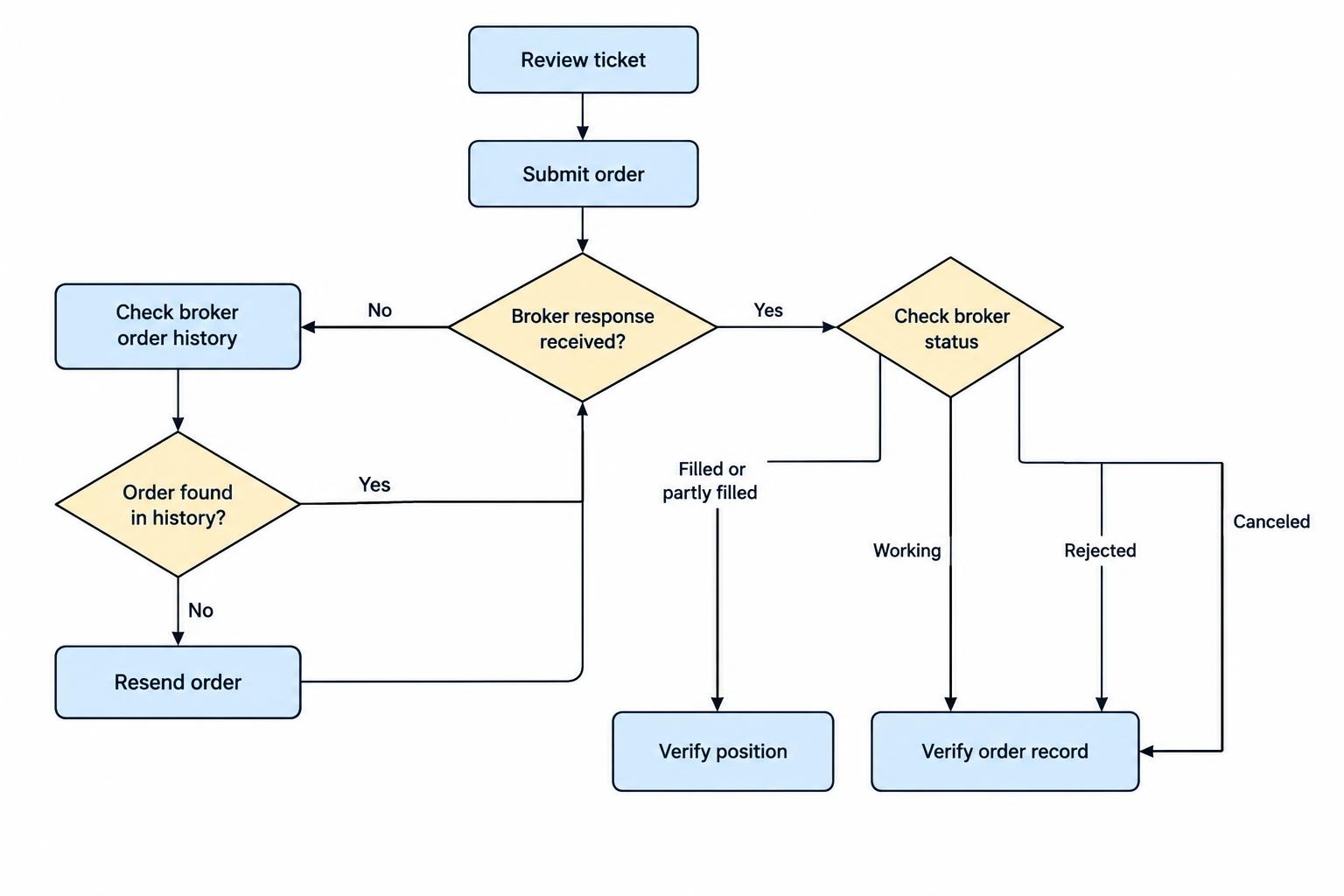
After submitting, inspect the order status rather than assuming the click succeeded. Distinguish acceptance from execution, and check whether the order is filled, partly filled, working, rejected or canceled.
If you cancel an order, wait for confirmation. If you change its price or quantity, confirm that the revised instruction is reflected in the order record. An action in the interface and a confirmed broker response are separate checkpoints.
For attached stops and targets, verify that the expected protective orders exist after entry. Do not rely only on a line drawn on the chart. Inspect the order record and understand how the remaining orders should behave when the position closes.
Troubleshooting TradingView Broker Connections
Identify the stage that failed before changing settings. A login error, a non-tradable symbol and a rejected order are different problems. Repeatedly pressing Connect is not a diagnostic method, even if it feels productive.
| Problem | Checks to make |
|---|---|
| Broker is not visible | Search the full available list and confirm account eligibility and device support. |
| Authentication fails | Check the live or demo environment, broker credentials and any outstanding security prompt. |
| Connected, but symbol is non-tradable | Select the broker-supported symbol, then review product permissions and data entitlements. |
| Order is rejected | Read the rejection message and check funds, quantity increments, permissions, session and order type. |
| Order response is missing | Check broker order history before sending another instruction. |
| Chart and ticket quotes differ | Compare instrument identifiers, data providers and delayed-data indicators. |
If the authorization window does not appear, check whether the browser blocked it. Allow only the permissions needed for the official connection process; do not disable security protections across the browser as a blanket fix.
When contacting support, provide the error text, timestamp and time zone, symbol, environment and relevant order identifier. Remove passwords, authentication codes and unnecessary personal details from screenshots.
Connecting Through the Mobile App
In the TradingView mobile app, open the chart tab and tap the Trade control in the toolbar. Select the broker, using Show All or search if needed, then complete its connection flow.
Check the integration on the device you actually intend to use. Before depending on mobile access, locate the account view, working orders, open positions and cancellation controls. Do this during setup, not during a fast market.
A smaller screen makes confirmation more valuable, not less. Review the full symbol and quantity before submitting, and avoid placing a second order simply because the first response has not appeared yet.
Prepare for Disconnection Before It Happens
Do not treat logging out, closing the browser or losing connectivity as an instruction to close positions or cancel orders. Confirm the broker’s order persistence and disconnection rules in advance.
Keep a tested alternative route to the account, such as the broker’s native application, and know how to contact its trading support. Our guide to trading platform failover and recovery covers the broader continuity process.
If the connection drops after submission, establish what happened through the broker before resending the order. Check working orders, fills and positions. An uncertain response should trigger verification, not another click.
The setup is ready only when you can identify the active account, select a supported instrument, verify usable quotes and reconcile order status. Connecting TradingView to a broker can reduce switching between applications, but those checks are what make the connection usable.