MetaTrader 5 (MT5) combines chart analysis, order management and automated trading in one platform. Its Expert Advisors, usually called EAs, turn programmed rules into actions: checking entry conditions, sizing orders, managing exits or sending alerts. An EA can handle a complete strategy or just one repetitive task.
The useful distinction is between the software and the trading setup around it. MT5 provides the tools; the connected broker, account and instruments determine how those tools operate in practice. A polished chart does not tell you whether a strategy survives trading costs, and an automated order is not automatically a good order.
This guide covers MT5’s trading tools, how Expert Advisors work and the checks worth making before using automation. For a broader assessment of platform selection, use our guide to trading platform features, costs and comparisons.
What MetaTrader 5 Provides
MT5 supports manual analysis alongside programmed trading. Its desktop offering includes 21 chart timeframes, built-in indicators and drawing tools, financial news, an economic calendar, alerts and an MQL5 development environment. Browser and mobile versions provide other ways to access a trading account. The official MetaTrader platform overview sets out these features and the available versions.
For practical evaluation, separate three questions: can you analyse the market comfortably, can you place and manage orders correctly, and can you verify what the software actually did? A platform needs to support all three. Having more indicators rarely fixes a weak answer to the last question.
| Trading task | What to evaluate |
|---|---|
| Chart analysis | Whether your layout makes entry conditions and invalidation levels clear |
| Order management | Whether order size, direction and protective levels are easy to check |
| Automation | Whether the program’s rules, permissions and failure behaviour are documented |
| Strategy evaluation | Whether historical assumptions resemble the intended trading account |
Charts, Indicators and a Usable Workspace
Start with a workspace that answers your strategy’s questions. A trend strategy might need a higher timeframe for direction and a lower timeframe for entries. A session breakout approach might need clearly marked trading hours and the previous session’s range. Neither requires covering every spare inch of screen with indicators.
Give each indicator a job. If two tools both measure momentum, decide whether the second changes a decision or simply repeats the first in another colour. Document the settings you use and whether signals depend on completed candles or prices that are still changing.
That last distinction matters when translating a chart idea into automation. “Buy when the moving averages cross” leaves several unanswered questions. Must the candle close first? Is one entry allowed per crossing? What happens if the averages cross back before the candle finishes? Write those answers before asking a developer to build the EA.
Keep a separate workspace for testing unfamiliar programs. It should be obvious which account is connected and which charts contain automation. Treat a move from demo to live trading as a deployment, not a casual login change.
Orders, Deals and Position Accounting
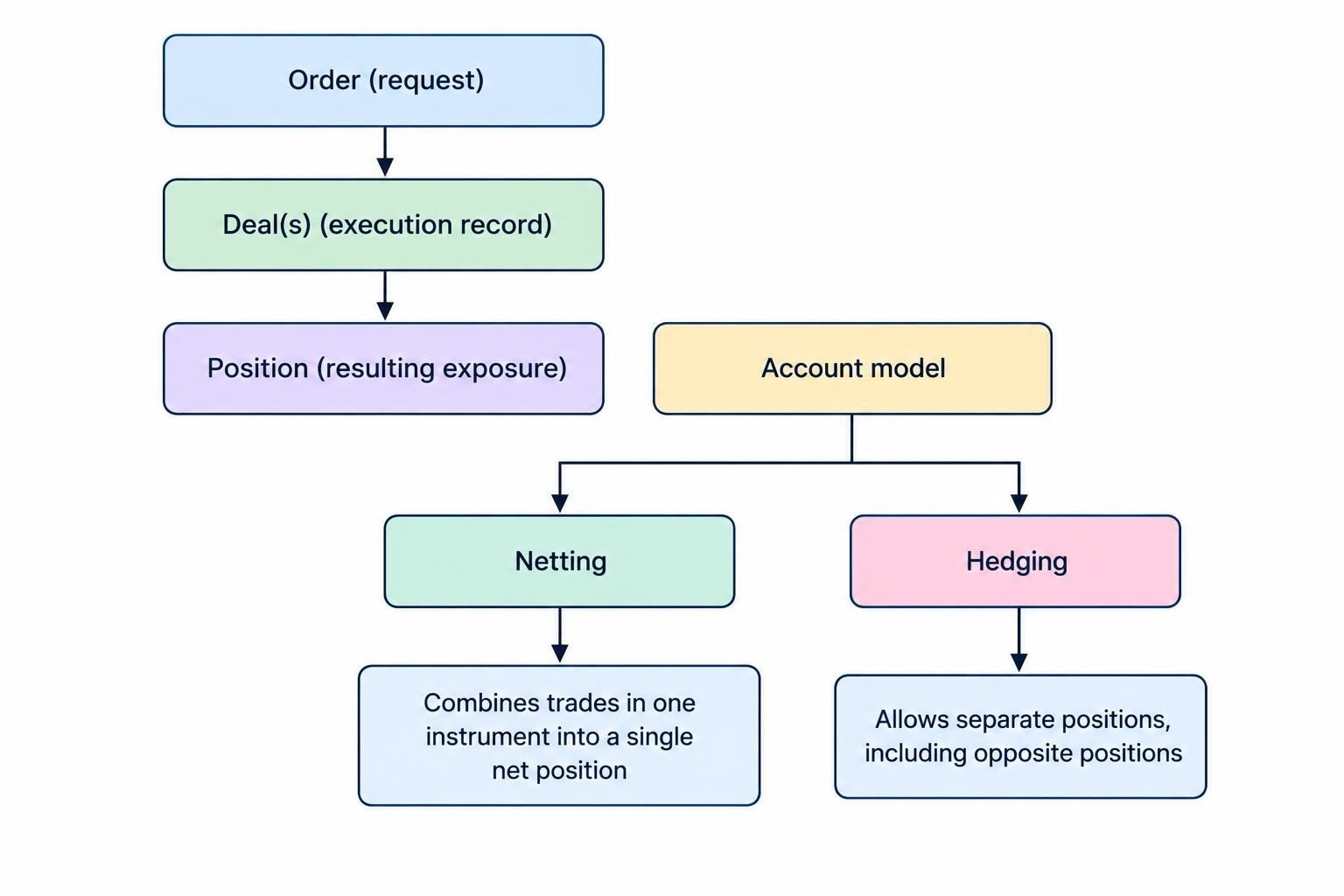
MT5 distinguishes an order, which requests a trading operation, from a deal, which records an execution, and a position, which represents the resulting exposure. One order can produce more than one deal. MT5 also supports netting and hedging account models, with the model set by the broker for the account. These distinctions are covered in the MT5 documentation on orders and position accounting.
Under netting, trades in one instrument contribute to a single net position. Under hedging, separate positions can coexist in that instrument, including opposite positions. An EA must handle the account model correctly rather than assume every new trade creates an independent position.
Consider two strategies trading the same symbol. On a netting account, their transactions affect shared exposure. Before combining them, ask how each strategy recognises its contribution and whether either can alter protection intended for the other.
Also separate protection already held on the trading server from logic that needs a running terminal. MT5’s built-in trailing stop operates in the terminal; if that terminal stops, it no longer moves the stop. The last stop level already submitted remains in place. Plan around that distinction rather than treating every automated exit as equally independent of your computer.
How Expert Advisors Work
An Expert Advisor is a program that follows coded instructions. It can evaluate conditions and submit trading requests, while a custom indicator primarily performs analysis. An EA does not need artificial intelligence, and calling a product “AI powered” tells you little about its trading rules.
MT5’s Expert Advisor setup and permission controls allow an EA to be attached to a chart and configured through its inputs. Automated trading must be permitted at both the platform and individual EA levels. Only one EA runs on a chart at a time, although separate charts can host separate instances.
The sensible starting point is often partial automation. A trader might choose entries manually but use an EA to calculate order size, apply a consistent exit rule or flag excessive exposure. This narrows the task that needs testing and keeps the discretionary decision visible.
For a fully automated strategy, demand plain answers about entry rules, exits, position sizing and recovery after interruption. Check whether the program adds to losing trades, increases size after losses or holds exposure without a defined exit. A smooth historical balance curve can distract from those questions. Do not let it.
Installing and Checking an EA
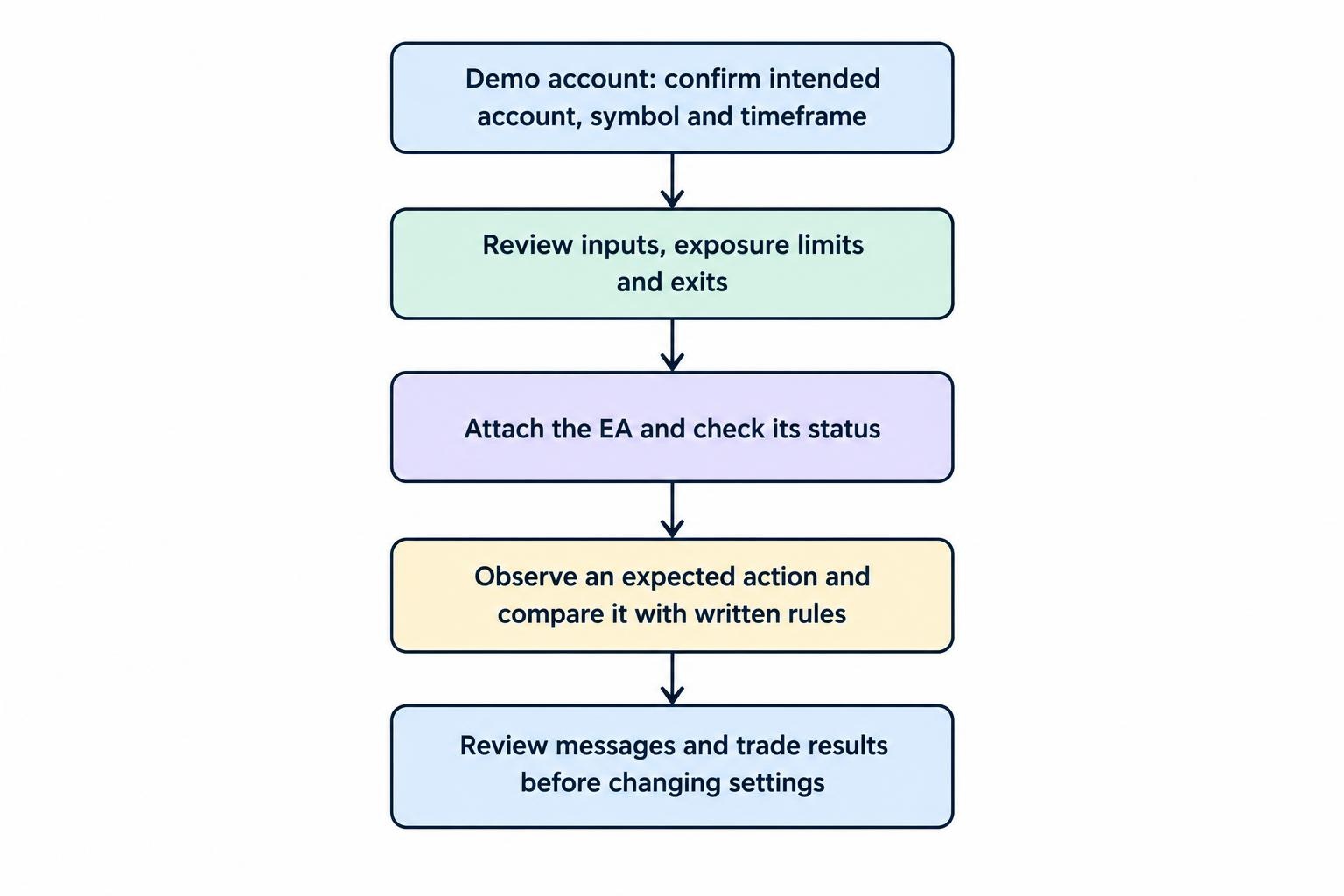
Use a demo account for the first installation. Keep the developer’s instructions, version number and input settings with your test records. If the program needs extra files, indicators or external services, record those dependencies too.
- Confirm the intended account, chart symbol and timeframe.
- Review every input, particularly trade size, exposure limits and exit behaviour.
- Attach the EA and check its status before permitting trading.
- Observe an expected action and compare it with the written rules.
- Review messages and trade results before changing settings.
Do not enable external DLL access simply to dismiss a warning. DLL imports extend what a program can do outside its normal environment and should be reserved for trusted applications. If the developer cannot explain why access is needed, stop the installation there.
Testing Expert Advisors With the Strategy Tester
A backtest should answer two separate questions: did the EA follow its instructions, and how did those instructions perform under the chosen assumptions? A profitable result does not settle the first question. A coding error can look surprisingly talented over a convenient stretch of history.
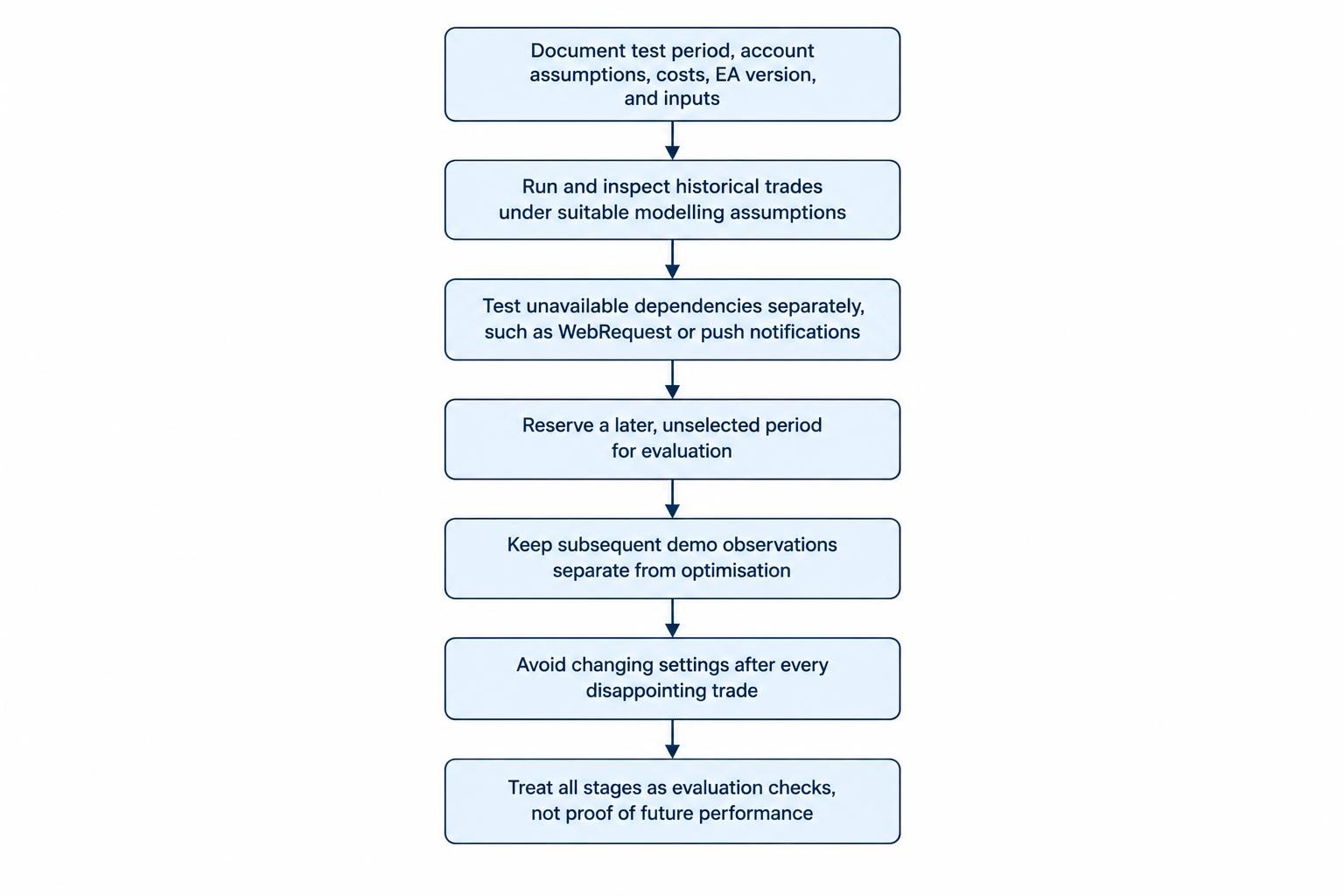
MT5’s Strategy Tester supports different price modelling approaches, including generated ticks and real tick testing, as well as strategies using multiple instruments. Testing mode affects how price movement is represented. The MQL5 reference on strategy testing also documents restrictions: functions such as WebRequest and push notifications do not execute in the tester.
That creates a practical boundary for EAs relying on external information or alerts. Verify the trading logic historically, then test the missing interactions separately. Do not interpret a completed backtest as proof that every live dependency works.
Match testing detail to the strategy. If entries or exits depend on movements within a candle, a simplified representation may miss the sequence that matters. Examine sample trades rather than accepting the final profit figure without inspection.
Record the data period, account assumptions, trading costs, program version and inputs. Then reserve a later period that you have not used to select settings. Our guide to backtesting an automated trading strategy covers that evaluation process beyond MT5’s interface.
What to Examine Beyond Net Profit
Review drawdown, trade count, loss concentration, holding periods and the exposure needed to earn the reported return. Compare equity, including open positions, with closed-trade balance. Ask whether the result depends on a handful of exceptional trades or one market condition.
Try nearby settings rather than celebrating one winning parameter combination. If a small change turns an apparently strong strategy into a weak one, investigate why. The objective is not to find the prettiest historical settings. It is to decide whether there is a defensible trading rule underneath them.
Keep optimisation results separate from subsequent demo observations. Changing settings after every disappointing trade makes it difficult to establish what you have actually tested.
Running an EA Continuously
Decide where the EA will run before deciding how to supervise it. For continuous automation, the operating environment needs an active terminal, connectivity and a recovery plan. A laptop that sleeps when its lid closes is not much of an operations department.
MetaTrader’s integrated virtual hosting transfers a prepared trading environment to a remote platform. There is an important permission difference: automated trading is enabled on that virtual platform even if disabled locally. The MetaQuotes guide to VPS preparation and migration describes this behaviour and how to inspect remote logs and stop the server.
After migration, verify the account, symbols, inputs and running programs at the destination. Establish which environment is responsible for trading, and avoid activating duplicate instances without a deliberate reason.
Write an emergency procedure that identifies where to stop automation and how to review outstanding exposure. Stopping a program and closing its positions are separate decisions; the procedure should address both.
Keep this operating checklist with your strategy records. Our guide to monitoring trading bots and detecting failures covers supervision, alerts and intervention in more detail.
Costs and Account Compatibility
Build a cost estimate around the intended account rather than the platform’s download price. Request current spreads, commissions, financing charges, market data fees and any account conditions relevant to the strategy. Include software purchases, subscriptions and hosting in the same estimate.
For a short holding period strategy, test whether the expected result survives less favourable transaction costs. For an overnight strategy, examine financing assumptions. Avoid judging two accounts by spread alone if their other charges differ.
Confirm the instrument itself. A familiar symbol name is not enough: check the contract type, size, minimum trade volume, price increment, trading session and available history. Ask whether the EA expects those exact specifications.
Before purchasing an EA, request an MT5 version, its supported account models and a clear description of dependencies. If you are replacing an older trading setup, budget for compatibility checks and fresh testing rather than assuming existing programs can move unchanged.
When MT5 Is a Sensible Choice
MT5 is worth evaluating when you want chart analysis, order management and programmed trading within the same workflow. Its value depends less on how many features you activate than on whether you can inspect, test and control the features you actually use.
Start with a representative task on demo: build the chart layout, place and manage an order, run the EA through expected conditions, then rehearse an interruption. Record anything that requires guesswork.
Choose the setup only when the workflow is clear enough to repeat. The right result is not an unattended robot you hope will behave. It is a trading process whose rules, costs and stopping procedure you can explain before money is at risk.